

Use an Image as a Background
In Caedium, using an image as a background in either a View Window or a Plot is easy and looks great.
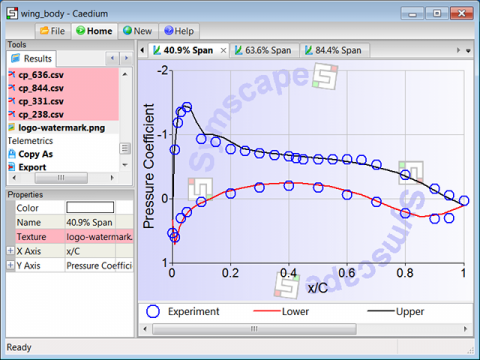 Image as a Plot Background
Assumptions
- You have downloaded and installed Caedium.
- You are familiar with Caedium essentials.
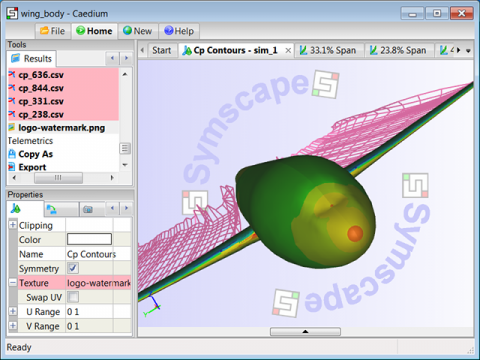 Image as a View Window Background
Procedure
- In the File Toolbar click the Import button
 . In the Import file dialog, change the file type filter to Image to see available images within a selected directory.
 - In the Results Tool Palette drag and drop the Imported->your-image tool onto the background of a View Window or onto a Plot to set the background image.
Feedback
Questions? Ideas? Problems?

Comments
Texture Map a Face
To apply an image (texture map) to a face, drag and drop the image onto the face.