
Visualization Preferences
Caedium preferences can control how imported or new geometry is displayed initially. Here we describe how to set new geometry faces to be shaded rather than transparent (the default setting).
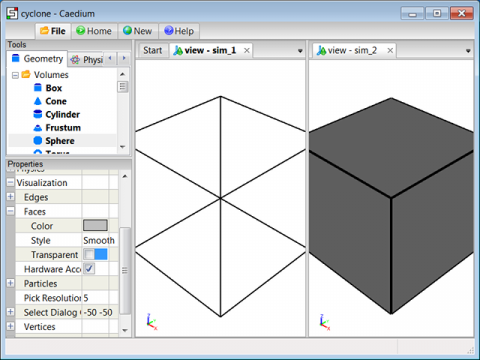 Visualization Preferences Example
Assumptions
- You have downloaded, installed, and activated Caedium Builder or Caedium Professional.
- You are familiar with Caedium essentials.
Procedure
- In the File Toolbar click the Preferences button
 .
. - In the Properties Panel open Visualization->Faces.
- Turn off the Transparent option.
- To see the effect of the new preference setting, create a new box:
- Select the Geometry Tool Palette.
- Drag and drop the Volumes->Box tool onto the View Window (view).
- Select Done to create a box (volume).
- You should now see a box with shaded faces.
Any preferences you change will be saved and used for all subsequent Caedium sessions. To return a preference property to its default value, select the property and then right-click it and select Reset.
Color and shading style preferences are also available for all geometry types and particles (streamlines).
Feedback
Questions? Ideas? Problems?