
Visual Finish
The visual look (finish) of geometry in Caedium is controlled by a Finish tool. Here we describe how to control the transparency of a geometry face.
 Transparency Example
Assumptions
- You have downloaded and installed Caedium.
- You are familiar with Caedium essentials.
Procedure
- Start Caedium and open a .sym file, such as pump-internal.sym.
- Select the Results Tool Palette.
- Drag and drop the Finishes->finish tool onto a geometry face in the View Window.
- In the Properties Panel click on the number field to the right of Finish->Transparency, click again to display the slider and then interactively adjust the value.
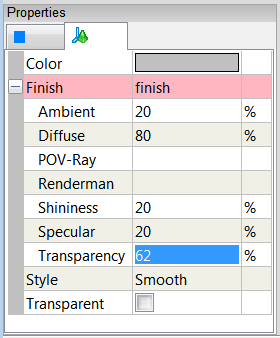 Finish Properties
For a Finish tool to have an effect its associated geometry must not be transparent. The Finish tool has other properties, such as Diffuse and Shininess, which control how light is reflected by the associated geometry entity.
In the New Toolbar click the Finish button  to create a new Finish tool in the Results Tool Palette under Finishes. These Finish tools can have different property settings to drag and drop onto different geometry entities.
Using the Finish tool you too can produce stunning images, such as the one below.
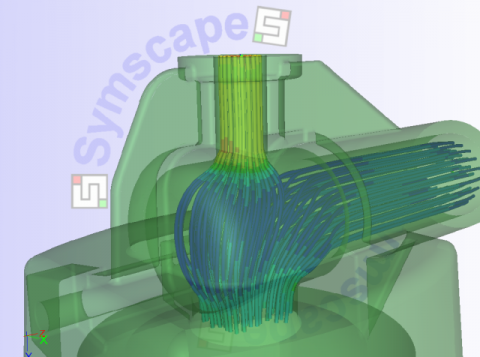 Internal Passage Fluid Flow
Feedback
Questions? Ideas? Problems?